
Have you ever felt limited by your theme when trying to customize the header footer of your website? Most WordPress themes and page builders offer only basic options, such as alignment tweaks or a search toggle. But what if you want full control over your WordPress header and footer layout, design, and functionality? That’s where tools like Ultimate Addons for Elementor come in, making it easy to design custom Elementor headers and footers without any coding.
If you’re building your WordPress website using Elementor, one of the most powerful features you can use is the ability to create a custom header and footer with Elementor. This allows you to design a consistent look across your site without relying on your theme’s limitations.
But to do that means altering the code in the header.php and footer.php files… and is that something you really want to mess around with? Wouldn’t it just be much easier if you could use the tools already at your disposal to give your WordPress site unique headers and footers?
Thanks to Elementor and another handy plugin – Ultimate Addons for Elementor, you can!
How to Use the Ultimate Addons for Elementor
Here’s a step-by-step guide to achieve a professional-looking header and footer using Ultimate Addons for Elementor:
1. Install and Activate Plugins
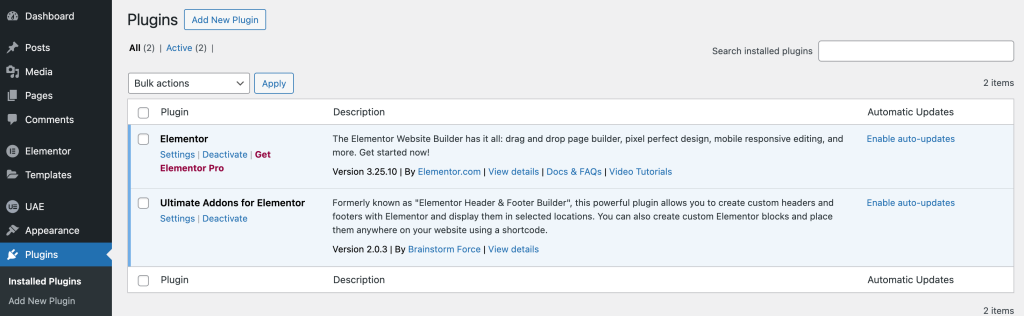
To start with, make sure that you have the two plugins installed and activated, Elementor and the free version of Ultimate Addons for Elementor.
Ultimate Addons for Elementor works smoothly with all major WordPress themes. If your theme needs special handling, simple compatibility settings are available to make integration effortless.
In case, after activating the plugins, you see a notice:
Your current theme is not supported by the Ultimate Addons for Elementor plugin; click here to check available compatibility methods.
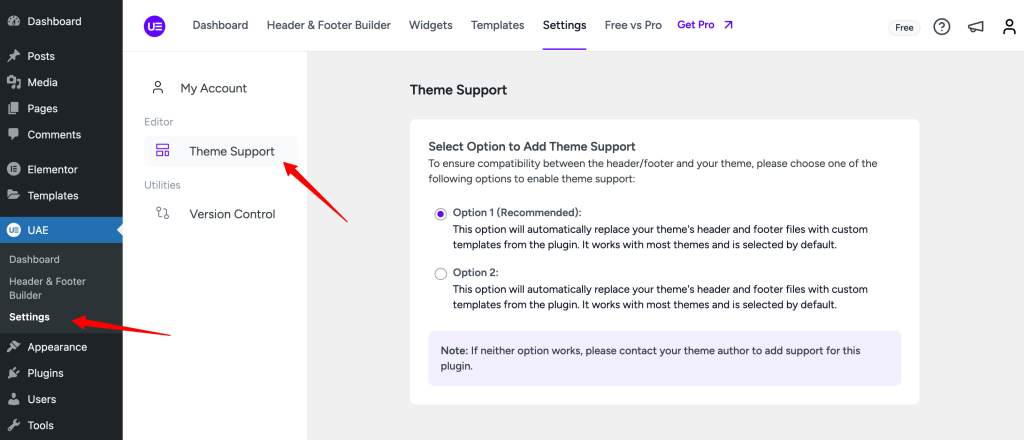
Navigate to UAE > Settings > Theme Support. Select a method to add theme support. In case these methods do not work, contact your theme author and request them to add support for the plugin.
2. Set Up the Header or Footer Template.
Under the UAE menu in WordPress, click on the Header & Footer Builder.
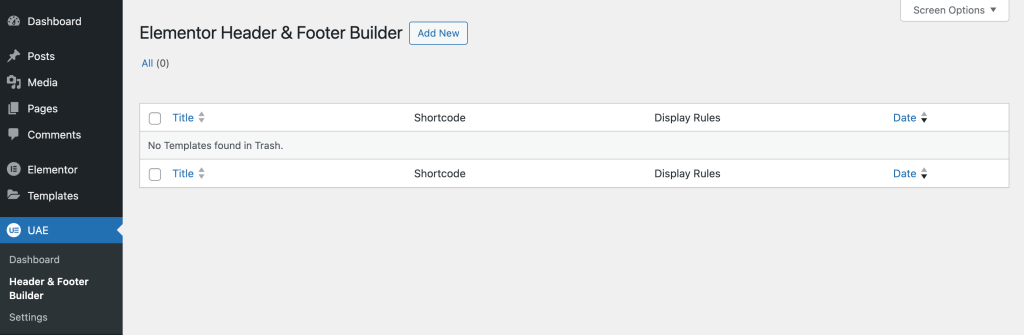
- Select Add New.
- Name the template.
- Choose the “Type of Template” whether you want to create a header, footer, custom block or before footer template.
- Select target locations with the “Display Rule” where the template should appear.
- Set “User Roles” for whom the template will be displayed.
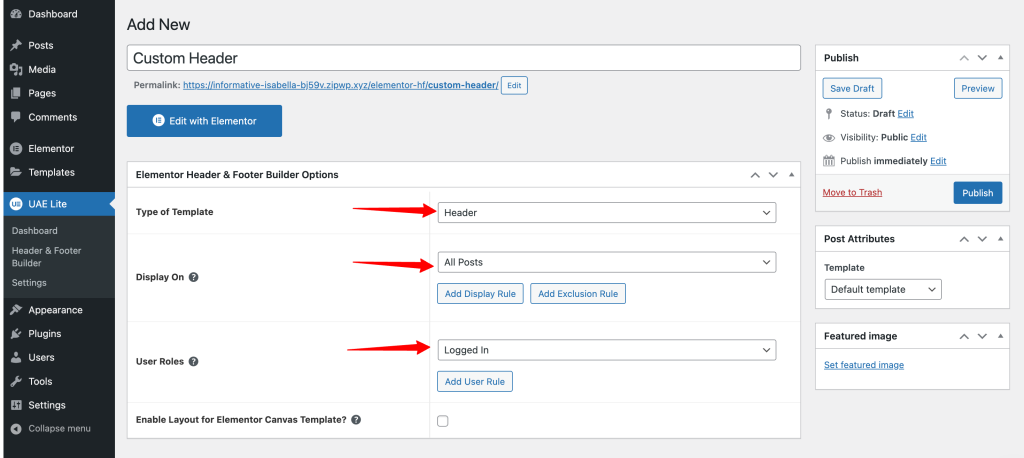
Hit the Publish button when you’re done.
3. Create the Header or Footer Template in Elementor
Next, go to Edit with Elementor. From here, you can build your header or footer template from scratch.
First, drag-and-drop the columns element into the interface on the right. Then set the number of columns you want to work with.
Once you have the framework established, fill in the remaining elements. Again, simply find them on the left and drag-and-drop them into place.
4. Add the Navigation Element to Your Template
Create a new menu if you haven’t so you have a navigation bar to include in your template:
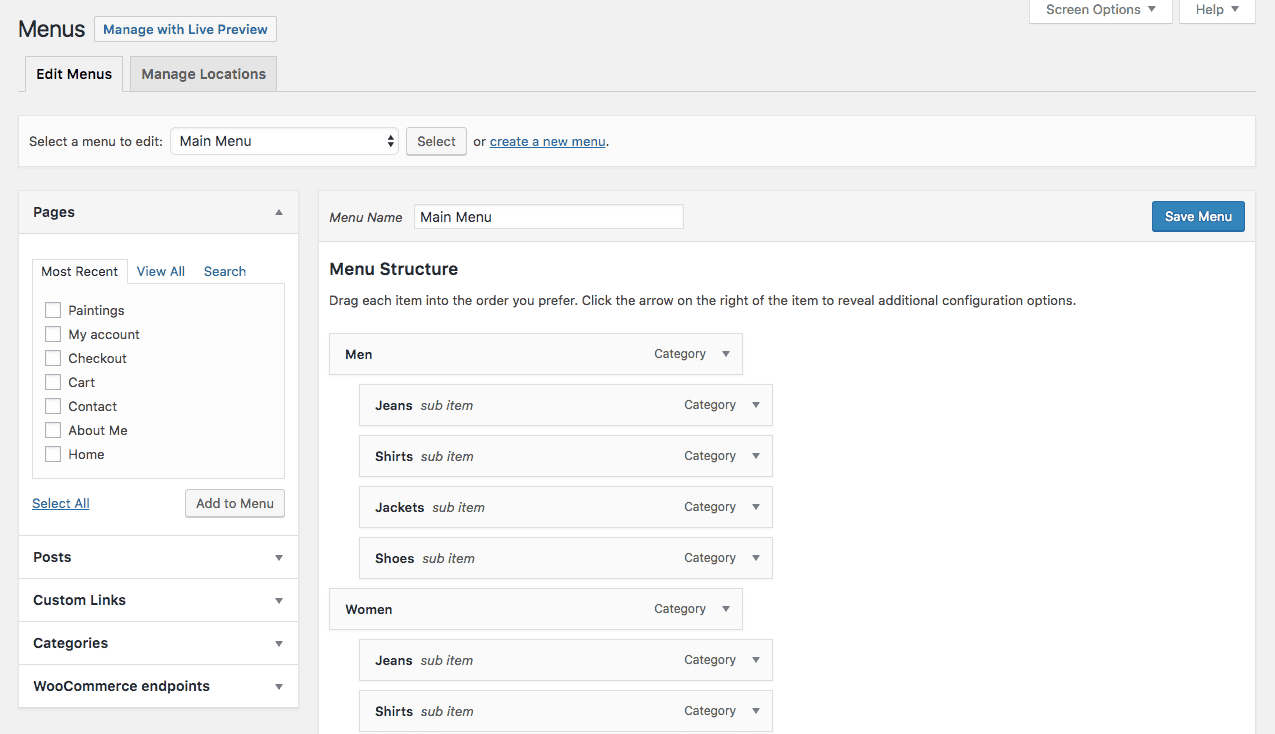
Something to note here is that the Elementor’s free plugin does not come with a menu widget. But Ultimate Addons for Elementor plugin does 🙂
Ultimate Addons for Elementor adds the following widgets and features in the Elementor editor.
- Site Logo
- Retina Logo
- Site Title
- Site Tagline
- Navigation Menu
- Search
- Cart
- Page Title
- Breadcrumbs
- Post Info
- Copyright
- Scroll to Top
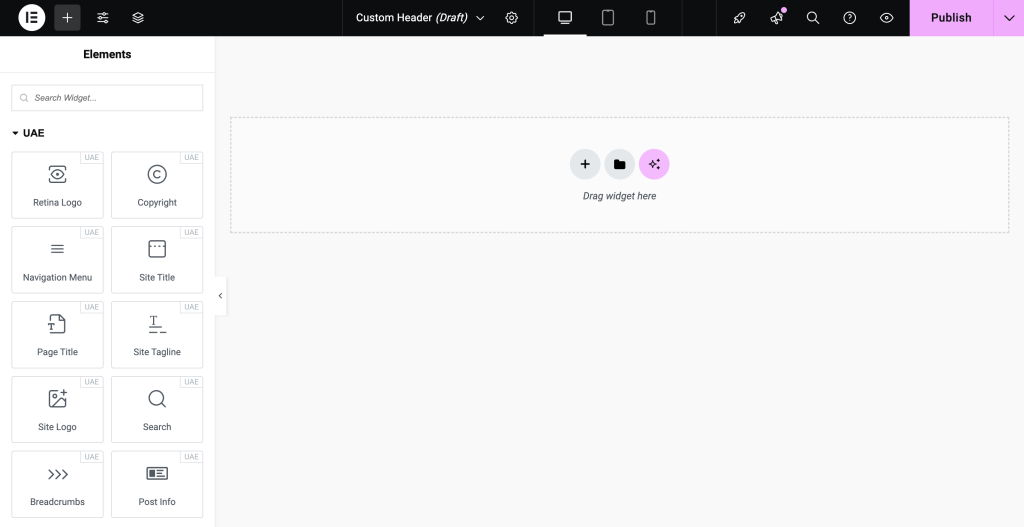
As with other elements in Elementor, all you need to do is drag and drop the widgets. In our case, we are using the Navigation Menu widget. Make sure that you have a menu created under the Appearance > Menus tab in WordPress; your new menu will now populate within the template.
With your navigation set, your template finalized, and all the elements customized to your liking, click the Update button.
5. Pay Attention to Responsiveness
One more thing you will want to do here before returning to the WordPress dashboard is checking on the responsiveness of your new header element. As you know, mobile menus can’t really accommodate the horizontal, full width-spanning elements we use on a desktop. So, be sure to customize that before you move on.
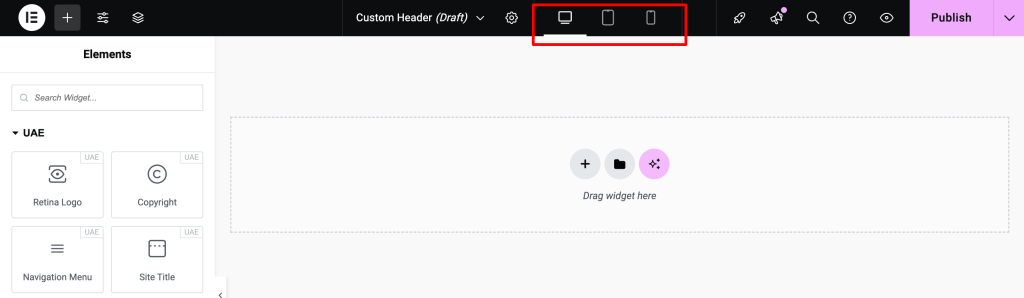
You can design the mobile versions of your header and footer templates using the responsive switches at the bottom of the widgets menu:
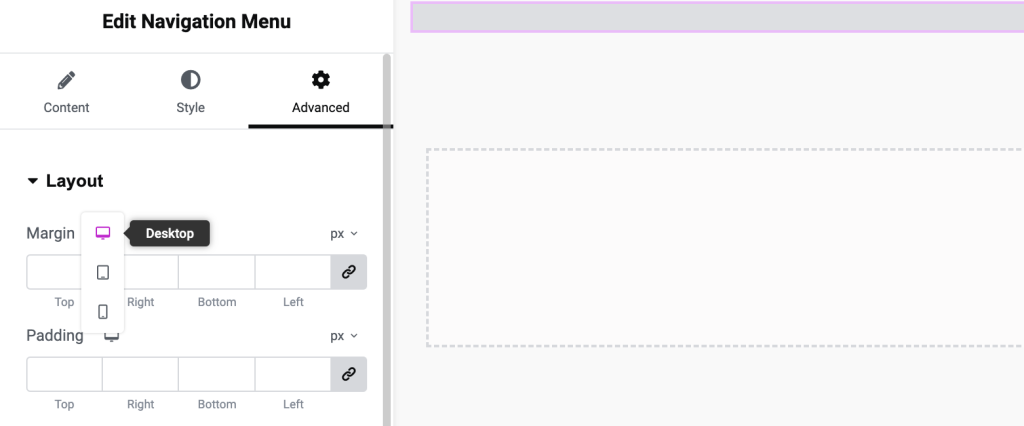
This will give you a look at how your new header or footer element will appear on tablets as well as smartphones. If you want to edit any of the elements for specific device screen sizes, look for the icons next to the elements:
Toggle to the device you want to customize the setting for, apply the change, and then repeat for all other screen sizes. Click the Update button to save all your changes.
6. Verify the Design
This is the basic header design we have created.
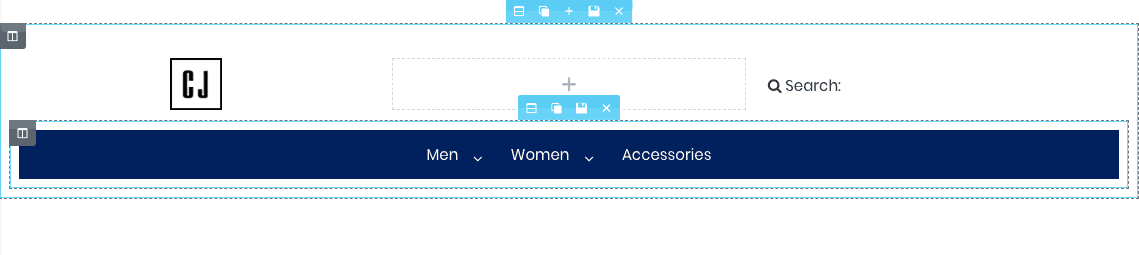
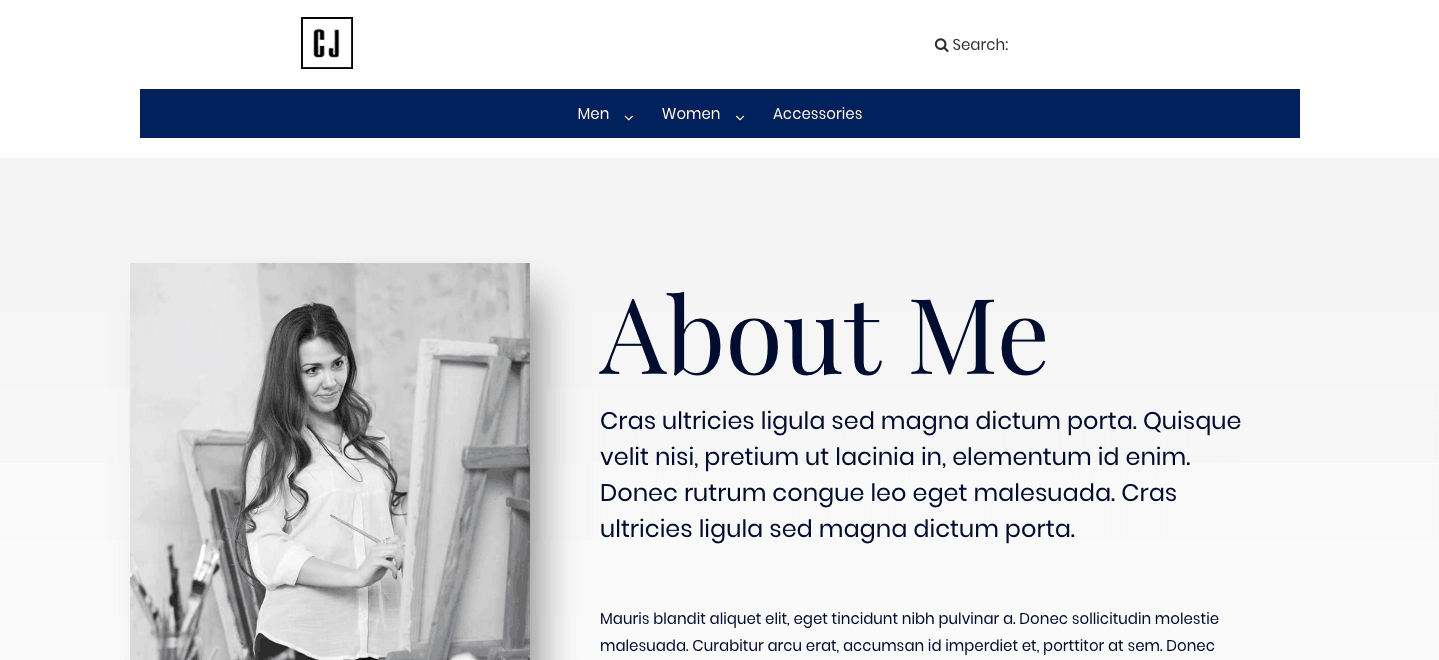
Return to WordPress, publish the changes to your site, and then hit the Preview button to ensure everything looks good on the front end of the site:

To apply this new header and/or footer you’ve created for the rest of your site, complete the final step.
7. Apply the Template Site-Wide (Optional)
If you use one of the supported WordPress themes, then there’s less work for you to do here as your new custom header and footer elements automatically populate throughout the website upon publication. There actually isn’t a fourth step for you in that case (which is an even greater argument for using these themes).
However, if your client’s website happens to be stuck with a different theme and you still want to add a custom header or footer to it, here is what you need to know:
When you build a new page in WordPress, select the Elementor Canvas template if you’re using a non-supported theme.
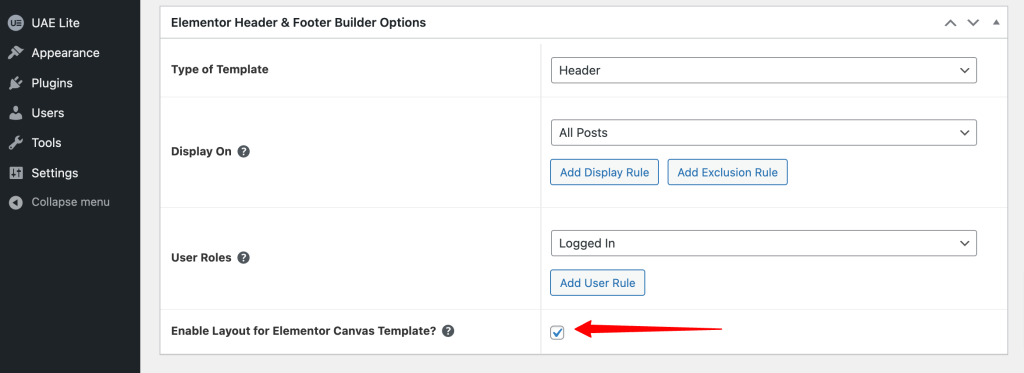
When that box is checked, it gives you the ability to quickly add your template to the Elementor Canvas page attribute. By simply selecting that page attribute, your web page will now auto-populate with the header or footer template you’ve generated:
8. Alternative Method: Using a Child Theme (Advanced Users Only)
WordPress themes simplify website design but often limit header and footer customization. Most themes allow layout selection for headers and footer widgets, but for a unique experience, you can:
1. Create a child theme. Then edit the code in the header.php or footer.php files to build out your custom designs and layouts.
2. Use the Elementor Page Builder along with the Ultimate Addons for Elementor plugin to simplify the whole thing.
Wrapping Up
WordPress is a great tool, but it has limitations, especially in designing header and footer elements. Fortunately, with the Ultimate Addons for Elementor plugin, you can gain more control over these sections and create a unique look for your site.





130 thoughts on “How to Create Headers or Footers with Elementor?”
Hello, I’m just learning and creating a Header by the Header/Footer builder plugin.
It’s great, but I have to try harder to make things perfect.
My question: I don’t find “sticky header” any more? I think it’s important. I’m using Astra theme.
I would really appreciate your help.
Hello,
First of all, thank you for your kind words! 🙂
Well, coming to the issue about the “sticky header” not seen anymore. I would suggest you to use Astra Pro that comes with a sticky header and allows you to save the header-footer template and import it using Elementor to the Custom Layouts section from Astra Pro – https://wpastra.com/docs/custom-header/
This will also give you options like targeting the header on specific pages, creating multiple headers etc along with the sticky header option.
hi there could you please help me..i have understood everything in this plugin apart from the breakpoint thing..i hope you got my issue..in mobile menu the dropdowns are coming in same column and not in full width..is it possible with this free version of the plugin???
Hello,
Could you please open up a ticket at our support center, so that we can take a closer look at your requirements and help you asap?
And I did. It’s worth. Thanks.
Hola!,
Qué tengo que hacer para que mi cabecera permanezca fija?
Hello Jaime,
You can follow the instructions mentioned in this article to make your header fixed or sticky on the scroll.
I hope that helps. Feel free to reach out to us through our support portal for quicker help. 🙂
I created a completely awesome header and footer, thanks to this incredible plugin. However, I now have a menu in my custom header and the header for the Generate Press Theme.
How do I get rid of the Generate Press primary menu, without turning off a functioning menu in my Custom Elementor Header?
Hello Marli,
Glad that you found our Header Footer Elementor plugin helpful.
Solution: To hide menu on your site, go to Customize > Layout > Primary Navigation and set the position to “Hide”. While creating a custom header with page builder you have an option to use menu widget/element.
If you need any further assistance please open up a support ticket from Support Form so that I can take a closer look at this.
I am using the Hello theme and don’t have the Layout option in the Customizer, how can I hide the theme header?
Hello,
Please try by setting the display rules to the entire website as per this screenshot. This will hide the theme header.
Do reach out to us through our Support Portal if you need any further help. 🙂
I am having this same issue. I’ve created the header and it will not show up on my home page. I am using the hello theme.
Hello Haqi,
Please do reach out to us through our Support Portal [ https://staging.ultimateelementor.com/support/open-a-ticket/ ] so that we can help you in the best possible manner.
Is there anyway with the default nav widget to edit the mobile drop down appearance or get rid of the arrows when you have sub menus?
Hello,
Could you please open up a support ticket, so that we can take a closer look at your requirements and help you with an accurate solution soon?
We look forward to hear from you. 🙂
Hello there !
I’m creating a website using OceanWP theme with Elementor page builder free. I’m really struggling with the limitations when it comes to customize the header and footer. I’m willing to give it a try to these plugins, but i just wanted to know if its possible to make a sticky menu using OceanWP and this plugins.
Thanks everyone !
Hello,
Not sure whether OceanWP has a similar option to allow you to create a sticky header. You’ll need to check that. However, this is certainly possible with the Astra theme and Astra Pro addon’s custom layouts module that allows you to do this along with target rules and many more options.
Is it possible to have multiple headers activated? For example, I would like to set a different header for my home page and checkout page.
Hello,
It is not possible to have multiple headers activated with this plugin.
However, this can be done using the Custom Layouts module of the Astra Pro Addon that gives you display rules to select pages you wish to display them on.
I have been able to create a fun header and footer with this program. Thanks for that!
But . . . I do not like the down arrows that automatically popup on the navmenu bar. Can I delete them.
Sadly, there are somehow 2 downarrows for each topic – it looks rather tacky.
How do I resolve this issue?
Hello,
I am sorry, but are you talking about the Header Footer Elementor plugin?
Just to let you know, our plugin adds post types to create layouts using Elementor. Looks like you are using another plugin to create the navigation bar. Could you please contact the theme author of the respective plugin to help you with this?
I think they’ll be the best ones to help you. 🙂
Do this plugin work with Avada theme?
The Ultimate Addons for Elementor should work with any WordPress theme as long as you are using Elementor free or Pro on your website.
Very good article. I thought i was the only one struggling with header & footer 😀
One major problem.. It cannot make a transparent header. It hangs onto a white background somewhere. I set the section, inner-section, and each of the 3 columns to transparent and it still comes out white.
If you are using Astra Theme, The transparent header option from the theme works with Header Footer Elementor Plugin as well.
For other themes it will require custom CSS which can be provided by the theme authors.
Unless I’m missing something, it does NOT work with Astra as a transparent header.
Hello,
Well yes, this won’t work with the Transparent header since it is a custom header that you are creating with the page builder that will override the transparent header settings of Astra.
Hi
Im using Astra pro and elementor pro. How can I have a transparent header without it being sticky using the elementor pro header template builder.? I have the sticky header effects plugin which allows you to make the header transparent but at the same time sticky, which I do not want.
I can ofcourse use the astra pro theme to build the header and make it transparent without sticky but I cannot build the header design I want with it.
Any Ideas as to how I could achieve what Im after?
Can you open up a support ticket with your siteurl? You can open a ticket from here
With plain Astra transparent header, I did it with custom CSS
.ast-theme-transparent-header.ehf-header #masthead {
position: fixed; /* absolute seems to work, too */
}
Great!
Thank you for sharing! 🙂
This is great! but is there a way to not make it sticky? i tried deleting the position: fixed but did not work
Hi, awesome plugin
I am using genesis but the header don´t push the content of the site is overlapping
Can you open up a support ticket from the support page?
Thanks for the helpful advice!
When I do custom header, the posts still have the old Astra theme header. Is it any solution for that?
This is not expected behavior.
Can you open up a support ticket some more information about your site?
Can you give an example of the vertical menu that you are referring to?
wonder fuulll
Hi, Thanks for the great tutorial, I have one minor problem which I am not able to solve… I have made a header with 3 parts, 1. Part should be where my menu stands, 2. Part has logo and 3.Part has social media icons. The problem is that I cannot make my menu to appear when I put Default NavMenu as a widget in that 1. section. I have menu build and it sees in that “Select menu” option but it won’t show it on site it only shows that gray bar with menu icon in the middle. Thank you for your response in advance!
Hello,
This looks more like a support query. Could you please open up a ticket at our support center, so that we can take a closer look and help?
Hi,
I’ve got the Astra Business Toolkit mini bundle.
I want to make a vertical menu.
Is that possible?
/Mikkel
Hey! I’ve done all the steps mentioned here but the header hasn’t populated automatically in my site. I use OceanWP theme. I built the header as a template and then used that template inside of the header footer builder inside elementor. It hasn’t populated automatically. Any help is appreciated! Thanks in advance
Can you open up a support ticket with URL to your website?
hey thanks for your plugin.how can i add language to it? thank you
Do you mean adding a multilingual capability to your header or footer? This plugin works well with WPML or Polylang WordPress plugins.
Hi There,
First of all thanks for the step by step guide, really useful, however. I have an issue with Elementor which I can’t seem to figure out and is preventing me from doing any of this work. I don’t have Pro but I don’t think that’s the issue.
When I’m trying to add elements to a page, I am unable to drag and drop from the elements menu into the main page on the right, this has been the case since I added Elementor and it may be something I’ve selected along the way, but I can’t figure out why.
I can add pages/blocks from the file option but not individual elements which is becoming frustrating because I am then limited to what I can create.
Thanks
Michael
It seems that some of the plugins are causing JS errors on your elementor editor window which is causing this problem.
Here is a video on how you can debug and find out which plugin is causing the problem on your site. – https://youtu.be/nO1nP1gBstM?t=21
I Created the menu using this method step by step and it’s in Elementor but Can’t seem to make it show on my pages…any ideas?
Can you open up a support ticket with your domain url and a screenshot related to your problem so that we can take a closer look?
Hallo, great plug-Inn all works fine. It’s probably a long shot, but in case anyone knows, I just want to ask, how do you change the toggle image on the menu bar to something else? I use Astra and Elementor page builder free versions. They are really great. My new header works well. But my client wants an image element from their logo to toggle the menu bar. In other words when you click on that element the menu bar drop down appears. Any ideas on how to do this will be great.
Maybe something like the Accordion widget work in your case? I have not personally tried for this use case though – https://docs.elementor.com/article/111-accordion
Hi…… In the header, how is the highlighted color and box around the selected page in the menu changed or removed? Thanks
This is done from the navigation menu widget in Elementor. This plugin does not provide any widgets so you will have to use any third party widgets for this.
Too many problems here are referred elsewhere to a support ticket, so I can’t tell how/if they were ever resolved. I will be reluctant to spend a lot of time trying these out under these circumstances.
I want to use the free Elementor and OceanWP without extras.
This plugin does work with OceanWP and Free version of Elementor.
In a few cases in comments where we have asked to open up a support ticket is when it actually needs more information from the user like their website URL so that we can debug the error as that is usually not a known error.
As this is more of a support request we request users to open up a ticket in such cases.
Hi,
I am trying to use this plugin and it’s really easy. Thank you for that.
I am also trying to use Polylang so I can have the header in several languages… is that possible with this plugin?
Thank you so much.
Yes. You can use Polylang to translate the header/footer templates, just like you would translate any other Elementor Pages on your site.
Hmm, I am using “Astra” template, “Polylang” and “Header footer Elementor” plugin, and it does not work in my case. The header and footer are not recognized as the “Pages”, so I have no idea how to proceed, Any suggestions?
This will need to be checked thoroughly, Can you open up a support ticket so that we can help you quicker?
Great tutorial and the header works perfectly… but mine seems to duplicate everytime on all pages apart from home page. I’m using Luchiana theme from park of Ideas. Please assist
Hello! I love this but is there a way to may the header transparent and overlay it with an image? I want my nav menu (just words, white font) to be transparent so it sits over the picture I have at the top of every page. Now I know I could add the picture to be part of the header but I have a different picture on every page… does that mean I’d have to make a different header for every page?
This plugin enabled me to make a custom one without the icon on my home page. thanks so much.
But the mobile minimum icon always has a border. Any ideas?
Hello,
Could you please contact us through our support center, so that we can take a closer look at your requirements and help you with it?
How I could import an header or footer template build with the elementor themebuilder from the normal template section in wordpress. I designed my header there and want to edit it with this header / footer plugin.
If you have saved that template with Elementor, you can insert it into the header and footer using the same method which inserts saved template in the page built with Elementor and then you can edit it as per your needs.
Hi,
Is there a detailed instruction of how to create “mega menu”? I drag a mega menu widget but the layout seems wired. thank you
Hello Jamie,
Here is a detailed article along with a video that will help you set a Mega Menu on your website. 🙂
Please feel free to get in touch with us if you need any further help.
Hi Elvina,
Can you explain how this works with the Elementor Header, Footer & Blocks plug-in? I’ve followed your link but the video doesn’t seem to use the plug-in described in the above article.
When I have the plug-in de-activated, the Mega Menu works fine, but when I activate the plug-in, it reverts back to the dropdown menu.
Hello Daniel,
Megamenu created using the Astra theme is handled with the CSS and JS of the theme, it will not work with the Elementor page builder and the Elementor – Header Footer & Blocks plugin.
It’s not an issue with EHF, it won’t work with the Elementor Nav menu widget as well. In this case, the user activates the EHF plugin, it adds a hook that replaces the theme header, so the mega menu created gets converted dropdown menu.
So, for now it is not possible to create a mega menu using Elementor Header Footer plugin.
Does not apply site wide. I can add a header to the homepage, but then the blog post page is still using the default Hello theme look.
Hello,
Could you please make sure you are using this plugin with a compatible theme listed here? If yes, and you still need help, please get in touch with us through our support center, so that we can take a closer look and help.
can I make different footer for different pages?
Sorry but this won’t be possible with Header Footer Elementor plugin. But you can design different footers for different pages with Astra Pro. See how Custom Layouts from Astra Pro help you with this.
Hi,
Can you only do this with Elementor Pro? Not with the free version?
You can do this with the free version of Elementor as well.
Thanks for having great articles on Elementor plugins. Your information was instrumental in helping me solve a major header placement problem.
I will check out your info on Elementor Widgets next. Again, thank you for all
that you do to help us, site builders.
I’ve added this plugin and followed instructions but I get an error as below and I’m not able to create my header. I’m using Astra Theme.
The Preview could not be loaded
Not Found 404 – Click here for preview debug
Hello
Could you please take a look at the article here and check whether it helps?
If not, I’d request you to please open up a ticket so that we can take a closer look.
please describe the excat name of the plugin of Header footer elemntor….
Hi,
The plugin name is – Elementor – Header, Footer & Blocks
You can download a free plugin from the WordPress.org link.
Этот плагин не дает сделать хедер на Ocean WP.
Hello there,
Headers built with page builders would replace the Theme headers. You can select the specific pages on which you want to display the headers or footer with this plugin.
Hope that helps. 🙂 Feel free to open a thread on the WordPress Forum support of the plugin or open a ticket through the Support Portal.
hello, I am not able to freeze the header kindly assist.
Hello Ashraf,
To create a Sticky Header in Elementor free version.
Create a Template for a header – https://share.getcloudapp.com/mXumJDzo
To make header as a sticky there is a setting in Elementor Section > Advanced tab please refer to it – https://share.getcloudapp.com/6quLEbZy In this way, you can design a sticky header in Elementor.
Hi! Thank you very much for this plugin. It is very useful.
I have a problem, though with the latest version (1.2.2). My site is multilingual and I have the footer in 3 languages. When updating the plugin from version 1.1.4 to 1.2.2 the website only displays one of the languages (English, the newer template), despite the templates in other languages are still visible under the Header Footers Template list. I have tried to change the “Display on” settings but there is no option to choose “Language”.
Any ideas?
I am using Polylang 2.6.9 on WP 5.2.4.
Thanks a lot!
Hello,
We recently released a huge update to the Header Footer Elementor plugin, which allows users to create multiple Headers & Footers and display them conditionally on different pages.
As now users are able to create multiple header and footer and display them conditionally, Polylang plugin now needs to provide support for our plugin.
Just to let you know, we tested Elementor Pro offers similar functionality (to create multiple header and footer and display them conditionally) and has similar compatibility issues with Polylang. But there is an addon plugin: “Connect Polylang for Elementor” which makes it compatible.
We have contacted the author of “Connect Polylang for Elementor” requesting if our “Header Footer Elementor” plugin can be supported as well. And hopefully, the support will be added soon.
You saved my day Elvina! Many thanks!
Option doesn’t exist. Is this only on elementor pro?
Hello Dave!
Can you update us on which option you are looking for?
Do you have the Elementor – Header, Footer & Blocks plugin installed and activated, it is a free plugin available on WordPress.org.
If you need further help with any features do reach out to us through our Support Portal where we can help you easily.
Regards,
Suman
I used free version of elementor for different wordpress theme like astra ,ocean wp etc at beginning stage.it only shown page and section in template library.but my problem is that elementor did not shown header and footer option in template library which I design it.
Please send me any suggestions or sitting which I can do design header and footer for my own webpage….
Hello Hujrian,
While designing a header/footer with Elementor – Header, Footer & Blocks, it gets listed below the templates list here.
Whereas, to design the header/footer with Elementor, you need to have Elementor Pro.
Bonjour,
Merci pour ce tuto, très bien expliqué. Avant d’arriver sur votre page j’ai fait plusieurs tentatives mais rien de satisfaisant.
Cordialement
Thank you for your kind words! 🙂
Hello! I am using the plugin and when I am inside the wordpress and I do the visualization, the header and the footer are perfectly visible but when I leave and see it on another computer, neither one is seen. I use the DARA theme.
Any reason why it happens? and a possible solution :)?
Hello Michal,
I tried to reproduce this scenario on our end with the Dara theme, but it seems like Elementor Header Footer is working fine with the theme.
I have confirmed the same on one of my colleague’s PC too. Could you please open up a ticket at our support center, so that we can look into it and help you asap?
Hi! I’m building a Store page with WC, using Elementor. I’ve set the Header and Footer with this great plug in correctly. However, whenever I browse any Store category/subcategory, the header and footers re-load, leaving the page empty for at least one second. Is this a normal behavior? I would expect for these elements to not disappear, but only the center content, store products, should?
Hello,
We have tried to reproduce this at our end, however, it seems to be working fine.
While this looks more like a support query. Could you please open up a ticket at our support center, so that we can take a closer look and help?
Hi! I’ve created my custom header. The result was incredible but I had an issue. I’m using Cenote as Theme but I don’t know why where I apply the custom header the page takes the custom header (elementor) formatting. The situation is so tough because every content is formatted with 0 left margins. How can I manage this issue? Because I would like to use that customization, but now it’s impossible….
Hello,
It is hard to understand and help you here. Could you please open a ticket at our support center, so that we can take a closer look to see what is happening and help?
Hi,
Thank you so much for the article!
I’m trying to set up an option to change the language of the site in the header. Is that possible?
All the best,
Silas.
Hello Silas,
No, the Elementor Header Footer plugin only allows you to create a template and use it as a header, footer, or a custom block on the website.
While to add a language changing option, you’d need to check if it can be added to the template by means of a shortcode or a widget provided by a plugin similar to WPML.
I hope that helps.
Hi there,
I used a template that had a footer that was created with the Elementor Footer Header & Blocks Plug-In. But now whenever i try to edit it it wont let me do it. It keeps taking me to: This page doesnt seem to exist.
How can i fix it?
Hello,
Could you please open a ticket at our support center, so that we can take a closer look and help?
Thank you so much for putting this up here..i finally found the solution for my sticky menu nightmare. Astra theme plus a custom css did the job for me ..
Thanks for this reference. Does anyone know if “Elementor — Header, Footer, Blocks” plugin is compatible with the new version 3.0 of Elementor and Elementor Pro?
I need the plugin because Elementor itself has an issue with WP Courseware, and the plugin neatly solves that particular problem and lets me use Elementor on my site. Thanks!
Hello Patrick,
Yes! Elementor – Header Footer & Blocks template plugin is tested with Elementor 3.0 and works fine!
In case if you face any issue like 404 Not found while editing the template, flushing the permalinks will resolve the issue.
Ref — https://wpastra.com/docs/how-to-refresh-wordpress-permalinks/
Feel free to reach out to us in case if you need any help. 🙂
Thanks! Held my breath and updated Elementor and Elementor Pro. Everything is fine.
–PB
Hi Mauricio, this is super helpful, however it makes the header sticky – how can I solve this? i tried deleting the position:fixed – but it did not work
Hello Diego,
Please follow the steps mentioned in this article. Feel free to reach out to us through our Support Portal if you have any further queries.
Hi there! I created a new menu/header in the block builder plug in. Had it show on every page except home page. Now, every page that has the menu has 2 menus showing. How do I eliminate the original menu?
Hi there, I love using your free headers & footers plugin, however, it totally messes up the layout of my wooCommerce store. Can you assist with how I can get around this? I am currently using the Azuma theme. Everything else is great, the pages are fine, it’s just when I go into the wooCommerce store the layout goes all messed up. I really love the elementor plugin and would love to use it if I could get it to work with my store section.
Hello Kerry, do go through our plugin description to see if it helps with the theme compatibility. Further, please feel free to open a topic on the Support Forum for help from our support team. Hope that helps. 🙂
I don’t see the settings like in the screenshot of this post
Hello Rubb, that’s strange! Please feel free to reach out to us through our Support Forum or Free Portal – https://wpastra.com/support/free-support/
Hello, I am using elementor which provides me a default header and footer, i have installed headers, footers and blocks, and i understand how to make a new footer, but its not showing the default footer of elementor, so i can edit it, how can i make headers, footers and blocks recognize the default footer so it loads it up?
Hello. Great Plug-In. I am able to add a header and footer that shows up on the front end. When I go back to edit the header or footer and select “Edit in Elementor” I get a Preview Cannot be loaded” message. I can successfully build with the plug-in, but I can’t edit anything once published?
Any Thoughts?
Hello Nancy, the error is referring to some issue probably. Here’s an article that can help you resolve the same – Link
I came across this today after tedious hours of thinking of how I can add footers to my website. The header feature has been a great plus honestly. This is incredible. I will definitely donate to this plugin once the website is up and running and my client is happy.
Chees, Felix!
So glad to hear that. 🙂
Hi, how can i make header to global?
Hello Masum, the Display Rule can be set to Complete site for this requirement.
hi Elina, thanks for this product! is it possible to make sticky on Efor theme?
thanks so much x
Sorry, Michelle! That won’t be possible as we do not have a sticky option.
How to keep both i.e. default header and header created by elementor header & footer builder.
I have created a new header using the plugin and chosen header area to place this new header. But it hides my default header. I need both for my website. Kindly do the needful, tq.
Hello Karti, sorry that won’t be possible! Or you can use the Astra theme’s Header Footer builder to design the complete Header section, hope that helps. 🙂
Hey! 🙂
It can’t make a transparent header. It allways is white. I set the section and each of the columns to transparent and it still is white. I tried to change it in CSS and I can make any color but can’t make it transparent.
I am using the Astra theme and turned on a transparent header in the customizer, and it didn’t give me a transparent background either.
Please tell me how can I get transparency?
Hi, I have no display rule option for my template? only ‘type of template’
How can I set my header or footer to global if this option selection is missing?
Thanks
Hi, I love the Header Footer & Blocks template plugin – works fantastic also with Polylang etc.
My question is: How can I change (edit) the rules where to display a Footer (e.g. there is a new page, on which I do not want to show the footer)?
Thanks
Hello Torsten, glad to hear that you like our plugin.
Do review the Display rules where you can define the rules to exclude the pages on which the footer has to be hidden. Hope that helps! Please feel free to reach out to us through our Support Portal for quicker help.